Tap Road on iPhone & iPad — Mobile Play Guide
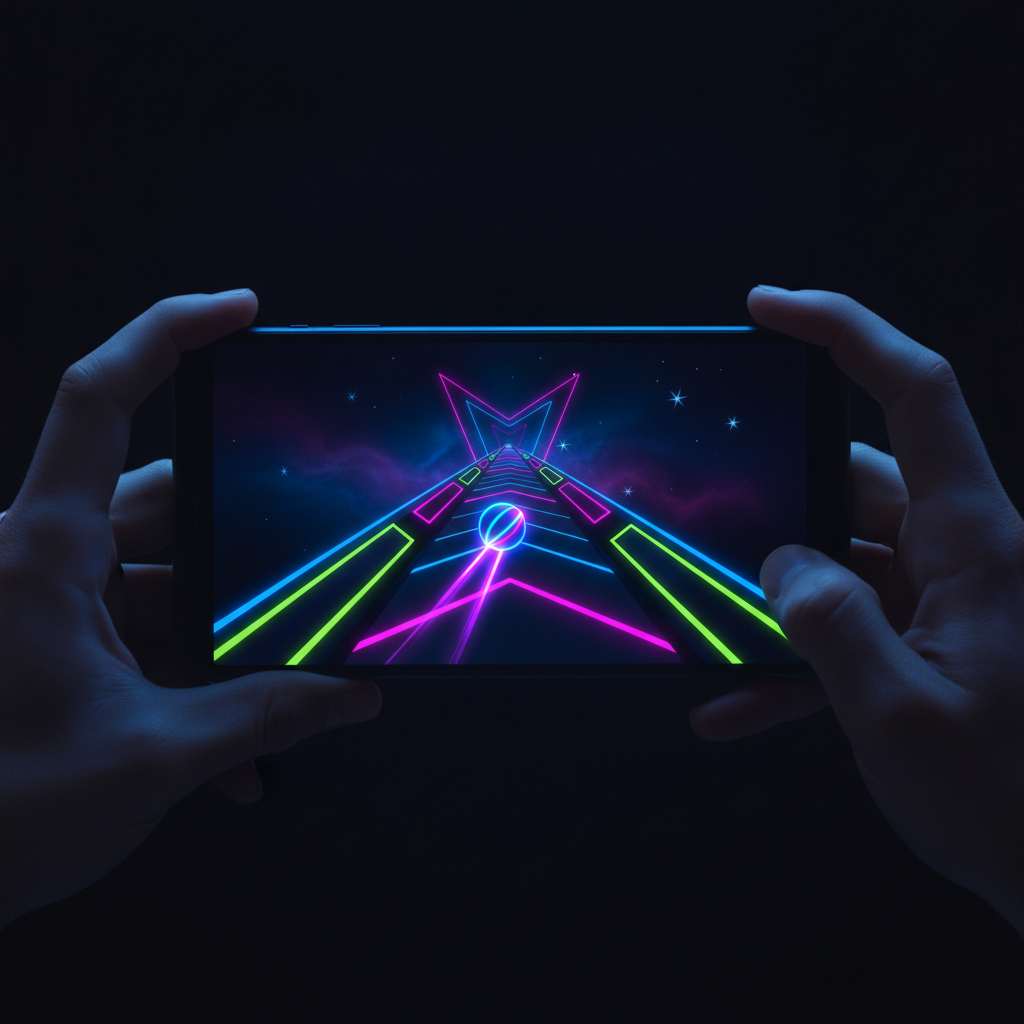
Tap Road was built for the browser, which means it runs beautifully on iOS devices without any app or download. Whether you are sneaking in a few runs on an iPhone during a commute or settling in with an iPad at home, mobile play has its own quirks that are worth understanding.
This guide walks through everything that affects your experience on iPhone and iPad: which browser to use, how to handle touch controls, what screen orientation works best, and how to stop the page from scrolling when you only meant to tap. By the end, you will have a setup that feels as responsive as a native game. For Android and general phone tips, also see Tap Road on Mobile.
How to Play Tap Road on iOS
You do not need an app store, an emulator, or any installation. Tap Road runs directly in your iOS browser.
Quick Start Steps
- Open Safari or your preferred browser on your iPhone or iPad.
- Navigate to the Tap Road homepage and press Play Now.
- Wait for the game to load.
- Tap to start and tap to switch lanes.
That is the entire setup. Because Tap Road is an HTML5 game, iOS handles it natively in the browser with no plugins required.
For a broader overview of how the game works, including controls and basic strategy, see our how to play guide.
Choosing the Right Browser on iOS
On iOS, every browser is powered by the same underlying engine, but the experience still differs because of how each browser handles full-screen mode, touch events, and page behavior.
Safari vs Chrome vs Others
| Browser | Full-Screen Support | Touch Responsiveness | Notes | | --- | --- | --- | --- | | Safari | Good with Add to Home Screen | Excellent | Best overall choice on iOS | | Chrome for iOS | Limited full-screen | Very good | Solid alternative, similar engine | | Firefox for iOS | Limited full-screen | Good | Works, but fewer gaming perks | | Edge for iOS | Limited full-screen | Very good | Comparable to Chrome |
Why Safari Usually Wins
Safari is the most tightly integrated with iOS. It handles touch events with minimal delay, supports Add to Home Screen for an app-like full-screen experience, and tends to render HTML5 canvas games smoothly.
If you play regularly, the Add to Home Screen trick is worth using. It launches the game in a standalone mode without the browser chrome, giving you more screen space and fewer accidental interactions with the address bar.
How to Add Tap Road to Your Home Screen
- Open the Tap Road page in Safari.
- Tap the Share button at the bottom of the screen.
- Scroll down and select Add to Home Screen.
- Name it something short, like Tap Road.
- Tap Add.
Now you can launch the game from your home screen, and it will open in full-screen mode with no tabs or address bar in the way.
Touch Controls Tips
Tap Road uses a simple control scheme: tap anywhere to switch lanes. That simplicity is a strength on mobile, but a few details make a big difference.
Tap With the Pad of Your Finger, Not the Tip
Using the tip of your finger can register as a lighter, sometimes less reliable touch. The pad of your finger creates a larger contact area and tends to register more consistently.
Pick One Tapping Spot and Stay There
You do not need to tap on the ball. You can tap anywhere on the screen. Choose a comfortable spot, ideally in the lower half of the screen where your thumb naturally rests, and keep tapping there. Moving your tap location around adds unnecessary motion and slows reactions.
Avoid Double Taps
A common mobile mistake is tapping twice quickly out of nervousness. Two taps switch lanes twice, which puts you back where you started and often directly into an obstacle. Tap once, commit, and wait for the next real decision.
Keep Your Thumb Relaxed
A tense thumb taps late. Keep your hand relaxed and rest your thumb near the screen without pressing. Light, deliberate taps are faster than hard, tense ones.
Screen Orientation: Portrait vs Landscape
Tap Road works in both orientations, but they suit different devices and play styles.
iPhone: Portrait Usually Wins
On an iPhone, portrait orientation keeps the game vertical and matches the natural way you hold the phone with one hand. It also gives you a taller view of the track, which helps you read obstacles further ahead.
Landscape can work if you prefer two-handed play, but it reduces how far ahead you can see and can feel cramped on smaller phones.
iPad: Landscape Often Feels Better
On an iPad, landscape orientation gives the track more horizontal room and feels more like a desktop experience. The larger screen also means your tapping thumb covers less of the play area, so you obstruct less of the view.
That said, portrait on an iPad is great if you want a long, narrow track view and you are playing with the device resting on a stand.
Orientation Comparison
| Device | Recommended Orientation | Why | | --- | --- | --- | | iPhone (one hand) | Portrait | Natural grip, taller track view | | iPhone (two hands) | Landscape | More thumb stability, but less preview | | iPad | Landscape | Desktop-like feel, less view obstruction | | iPad on a stand | Portrait | Long track view, tap with one hand |
Try both on your own device for a few runs and pick the one that feels more controlled, not the one that feels more exciting.
Avoiding Accidental Scrolls
The single biggest annoyance when playing browser games on iOS is accidental scrolling. You tap to switch lanes, and instead the page moves.
Fixes That Work
- Add to Home Screen: Launching from the home screen icon runs the game in standalone mode, which greatly reduces scroll behavior.
- Zoom in slightly: Pinch to zoom in on the game area. A larger game canvas means taps are less likely to hit scrollable page regions.
- Tap within the game area only: Keep your taps inside the game canvas, not near the edges where the page background sits.
- Rotate to landscape if the page is tall: Landscape often fits the game better and leaves less scrollable space above and below it.
If you still get scrolling, try a hard refresh of the page and re-add it to your home screen. Sometimes Safari caches an older layout.
Performance Tips for iOS
iOS devices generally run HTML5 games well, but a few settings keep things smooth, especially on older iPhones or iPads.
Close Other Tabs and Apps
Browser games compete for memory with other open tabs and background apps. Before a serious session, close unused tabs in your browser and swipe away apps you are not using.
Turn Down Screen Brightness Slightly
This does not affect the game directly, but it reduces heat on longer sessions. Hot devices throttle performance, which can cause subtle input lag.
Keep iOS Updated
Apple regularly improves Safari's canvas and touch handling. Staying on a recent iOS version gives you the best combination of performance and compatibility.
Use Low Power Mode Carefully
Low Power Mode can reduce CPU performance and introduce minor input lag. If you are going for a high score run, turn it off. If you are just casually farming gems, it is usually fine.
Performance Checklist
| Setting | Effect on Gameplay | Recommendation | | --- | --- | --- | | Close other tabs | Frees memory, reduces stutter | Do this before sessions | | Add to Home Screen | Removes browser chrome, fewer scroll issues | Always | | Low Power Mode | Can add slight input lag | Off for serious runs | | Screen brightness | Affects device heat | Slightly lower for long sessions | | iOS updates | Improves Safari performance | Keep current |
Best Settings for iPad vs iPhone
iPhone and iPad share the same operating system, but the way you interact with each device is different enough to warrant separate recommendations.
iPhone Setup
- Orientation: Portrait
- Browser: Safari with Add to Home Screen
- Tap spot: Lower third of the screen, thumb-friendly
- Grip: One hand, relaxed thumb ready
- Zoom: Default or slightly zoomed in on the game
iPad Setup
- Orientation: Landscape
- Browser: Safari with Add to Home Screen
- Tap spot: Lower right or lower left corner, depending on handedness
- Grip: Two hands holding the edges, or device on a stand
- Zoom: Default, since the screen is already large
Side-by-Side Comparison
| Factor | iPhone | iPad | | --- | --- | --- | | Orientation | Portrait | Landscape | | Tapping finger | Thumb | Thumb or index finger | | View of track | Taller, narrower | Wider, more spacious | | Best for | Quick sessions on the go | Longer, focused sessions | | Risk of accidental scroll | Higher | Lower |
Common Mobile Problems and Fixes
| Problem | Likely Cause | Fix | | --- | --- | --- | | Page scrolls when tapping | Tapping outside game area | Add to Home Screen, zoom in | | Taps feel delayed | Low Power Mode or many background apps | Close apps, disable Low Power Mode | | Game feels small on screen | Default zoom too far out | Pinch to zoom in on the canvas | | Accidental double taps | Nervous tapping habit | Tap once, then pause deliberately | | Input lag on older device | Background tabs and apps | Restart browser, close tabs |
Making Mobile Feel Like a Native Game
The goal of all these tweaks is to make Tap Road feel like it was built for your device. When you add it to your home screen, choose the right orientation, and tap from a consistent spot, the game stops feeling like a web page and starts feeling like an app.
That matters because Tap Road is a reaction game. Anything that adds delay, distraction, or discomfort directly costs you runs. A clean mobile setup removes those barriers and lets your actual skill show through.
For more on playing across different devices and setups, see our broader mobile play guide. If the game fails to load on a managed network, use the safe play guide. And if you want to turn your smooth mobile setup into higher scores, pair it with the habits in our how to play guide.
Quick Mobile Setup Checklist
Before your next iOS session:
- Add Tap Road to your Home Screen via Safari.
- Close other browser tabs and background apps.
- Pick your orientation based on your device.
- Choose one comfortable tapping spot and stay there.
- Zoom in slightly if the game feels too small.
- Turn off Low Power Mode for serious runs.
Do these once and your mobile experience will be noticeably smoother on every run after. Tap Road on iPhone and iPad can feel every bit as responsive as desktop play, you just need to set it up with the same care you bring to the game itself.